
If you’ve been using Windows for years, you probably think you’ve seen it all. The Start menu? Check. Task Manager? Of course. Keyboard shortcuts? Maybe a few. But here’s the truth: Windows 11 is packed with powerful features that most people never notice, or never fully use.
I’ve spent quite a bit of time digging into Windows 11 beyond the obvious surface-level stuff, and I can confidently say this: some of its best tools are quietly hidden in plain sight. These hidden Windows 11 features are not flashy; but once you start using them, they can noticeably how smooth, fast, and comfortable your day‑to‑day work feels.
Below we’ll not discuss just some list. It’s a practical guide based on real usage of features that can make a difference in your day-to-day computing tasks.
1) Snap Layouts: The Ultimate Multitasking Tool
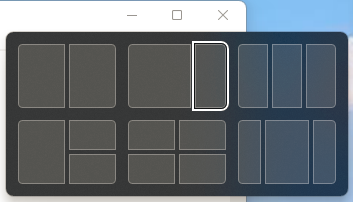
Most people know you can drag windows around, but Snap Layouts takes multitasking to another level. Hover over the maximize button on any window, and you’ll see different layout options – halves, thirds, grids.
Why it’s useful:
- Instantly organize multiple apps
- Perfect for research, coding, or content creation
- Works great on large or ultra-wide screens
Pro tip:
Use Windows + Z to open Snap Layouts instantly without using your mouse. Once you start using this regularly, going back to manual window resizing feels slow and outdated.
2) Virtual Desktops for Better Focus
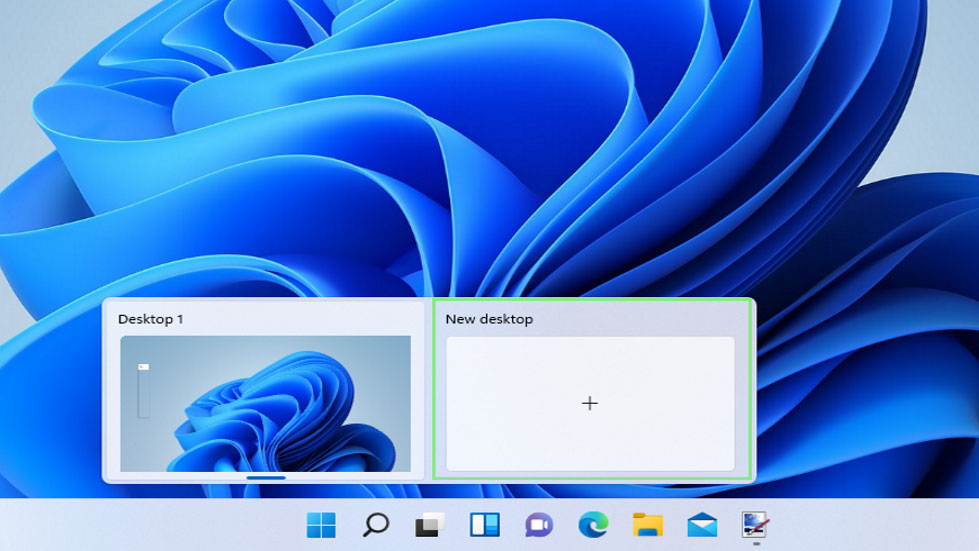
Virtual desktops aren’t new, but Windows 11 made them smoother and more usable. Press Windows + Tab, and you can create separate desktops for work, personal browsing, entertainment, projects!
Real-world use:
I personally keep one desktop just for writing, another for browsing, and one for system tools. It reduces clutter and keeps focus sharp.
Bonus:
You can assign different wallpapers to each desktop – small detail, but it helps mentally separate tasks.
3) Clipboard History: Copy More, Work Faster
Most people use copy-paste like this:
- Copy one thing → paste it → gone forever
But Windows 11 has Clipboard History. Press Windows + V, and you’ll see everything you copied recently.
Why it matters:
- Copy multiple links, texts, or codes at once
- Paste anything anytime without re-copying
- Supports emojis and symbols too
Enable it:
If it’s not working, turn it on in Settings → System → Clipboard. This is one of those features that instantly boosts productivity.
4) Focus Sessions: Built-in Productivity Booster
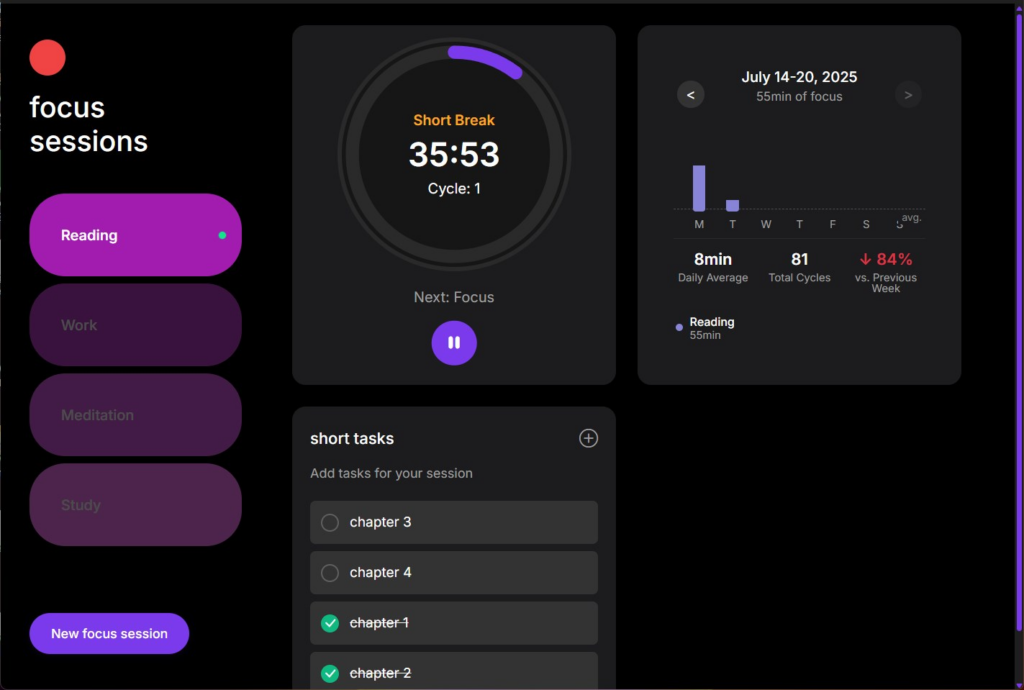
Windows 11 quietly introduced a feature that rivals productivity apps. Search for Focus Sessions in the Clock app.
What it does:
- Lets you set work timers (like Pomodoro)
- Integrates with tasks (Microsoft To Do)
- Plays background music via Spotify
Why it’s underrated:
Instead of downloading third-party apps, you already have a clean, distraction-free focus tool built in. Great for students, developers, or anyone working long hours.
5) Quick Settings Panel You’re Ignoring
Click the icons for Wi-Fi, battery, or volume on the taskbar. That opens the Quick Settings panel. Most people just toggle Wi-Fi – but there’s more.
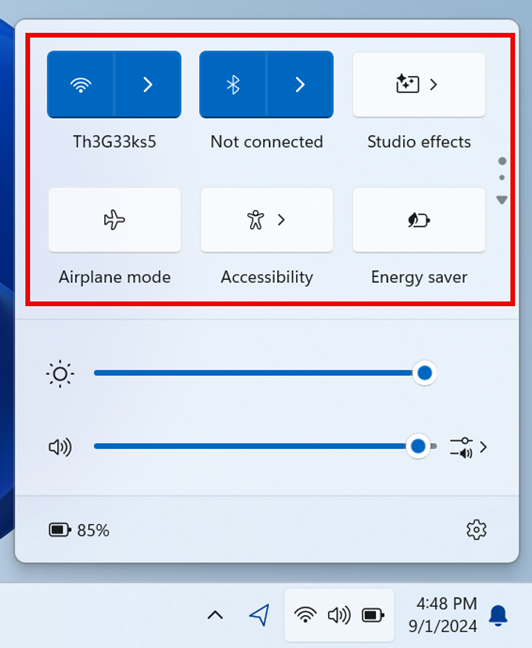
You can:
- Switch audio devices instantly
- Enable night light
- Toggle accessibility features
- Manage Bluetooth devices quickly
Hidden power:
You can customize it – add or remove shortcuts based on your needs. This saves time digging through full Settings menus.
6) Dynamic Refresh Rate (Better Performance + Battery)
If you’re using a laptop with a high refresh rate display (like 120Hz), this feature is gold.
What it does:
Automatically switches between:
- High refresh rate → smooth scrolling
- Lower refresh rate → saves battery
Where to find it:
Settings → System → Display → Advanced display
Why it matters:
You get the best of both worlds – performance and efficiency – without manual switching.
7) Voice Typing (Shockingly Accurate)
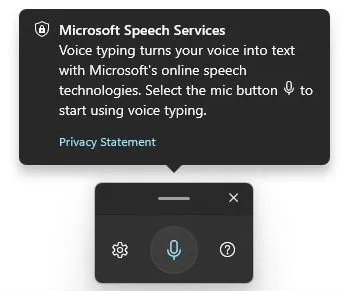
Press Windows + H, and you activate Voice Typing. This isn’t the old clunky dictation system – it’s fast, accurate, and surprisingly usable.
Best for:
- Writing emails quickly
- Drafting blog content
- Taking notes hands-free
Real experience: After using it for a while, you’ll notice it can match (or beat) typing speed for many tasks.
8) Hidden Right-Click Menu (Classic Context Menu)
Windows 11 updated the right-click menu, which some users disliked.
But here’s the hidden trick:
- Right-click → “Show more options”
- OR press Shift + F10
Why it matters:
You get access to the full classic menu, including advanced file options and third-party app integrations. This is especially useful if you’re working with development tools or advanced file operations.
9) Storage Sense for Automatic Cleanup
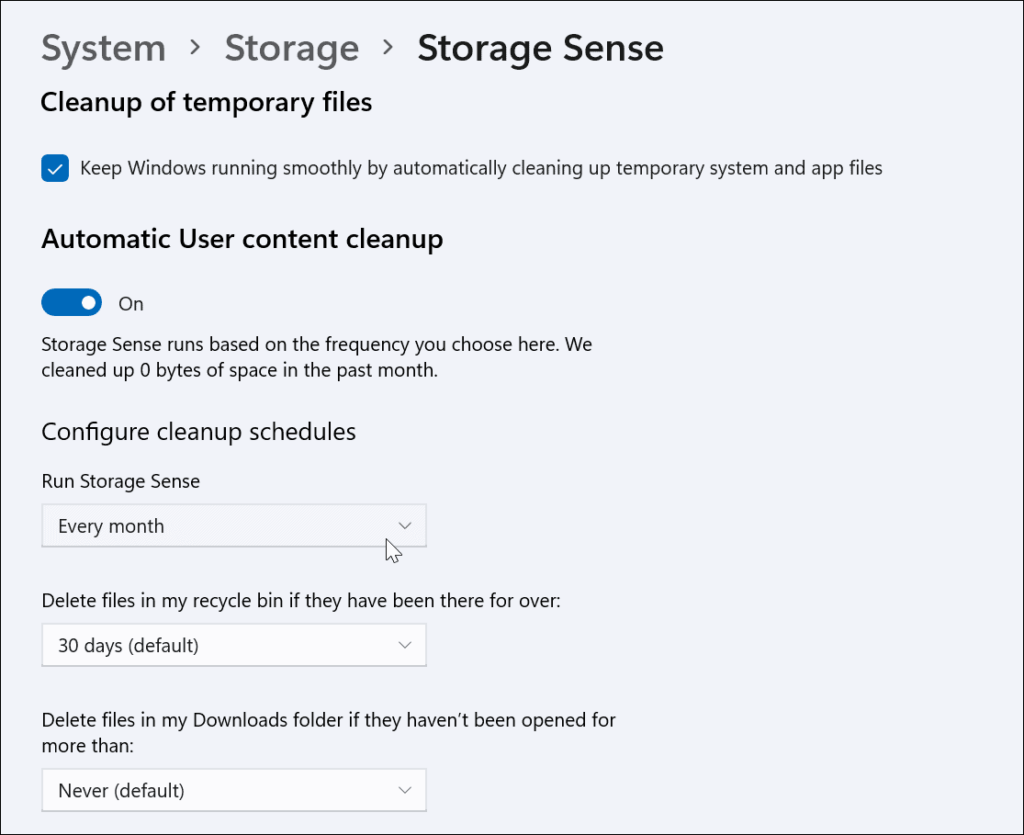
We all accumulate junk files, temporary files, cache, old downloads that become a burden as the operating system ages. Storage Sense quietly handles this.
What it does:
- Automatically deletes temporary files
- Cleans recycle bin
- Frees up disk space regularly
How to enable:
Settings → System → Storage → Storage Sense
It keeps your system clean without manual effort. If you’ve ever run out of space unexpectedly, this feature prevents that.
10) Windows Terminal (A Power User’s Dream)
If you’ve ever used Command Prompt or PowerShell, this is the upgraded version. Windows Terminal combines:
- Command Prompt
- PowerShell
- Azure Cloud Shell
All in one tabbed interface. It’s powerful because it has multiple tabs like a browser, custom themes and fonts and a faster and more modern interface. Even if you’re not a developer, you can still use it for basic commands, system checks, or learning new skills.
Bonus: God Mode (Yes, It Still Exists)
This one sounds like a myth—but it’s real. Create a new folder and rename it to:
GodMode.{ED7BA470-8E54-465E-825C-99712043E01C}
What happens: You get a single panel with all system settings in one place. Here everything is centralized and is great for advanced users.
Final Thoughts
The beauty of Windows 11 isn’t just in its design- it’s in these small, thoughtful features that quietly improve your daily experience. Problem is that most people never discover them.
If you start using even 3-4 of the features from this list:
- Your workflow becomes faster
- Your system feels smarter
- And you spend less time doing repetitive tasks
This isn’t about being a power user. It’s about working smarter with tools you already have.
